Reading this alone?
Do it with peers — bi-weekly calls, $29/mo founding.
What you need (5 min)
- Mac or Windows
- Chrome (you'll install one extension)
- An Anthropic account on a paid Claude plan (Pro or higher) — Cowork mode isn't available on the free tier.
- Your resume as a PDF
- A LinkedIn account that you've signed into in this Chrome at least once
- 20 minutes the first time. 30 seconds every time after.
Install Claude desktop
- Go to claude.com/download and grab the desktop app for your OS.
- Sign in with your Anthropic account.
- Open it.
Switch to Cowork mode
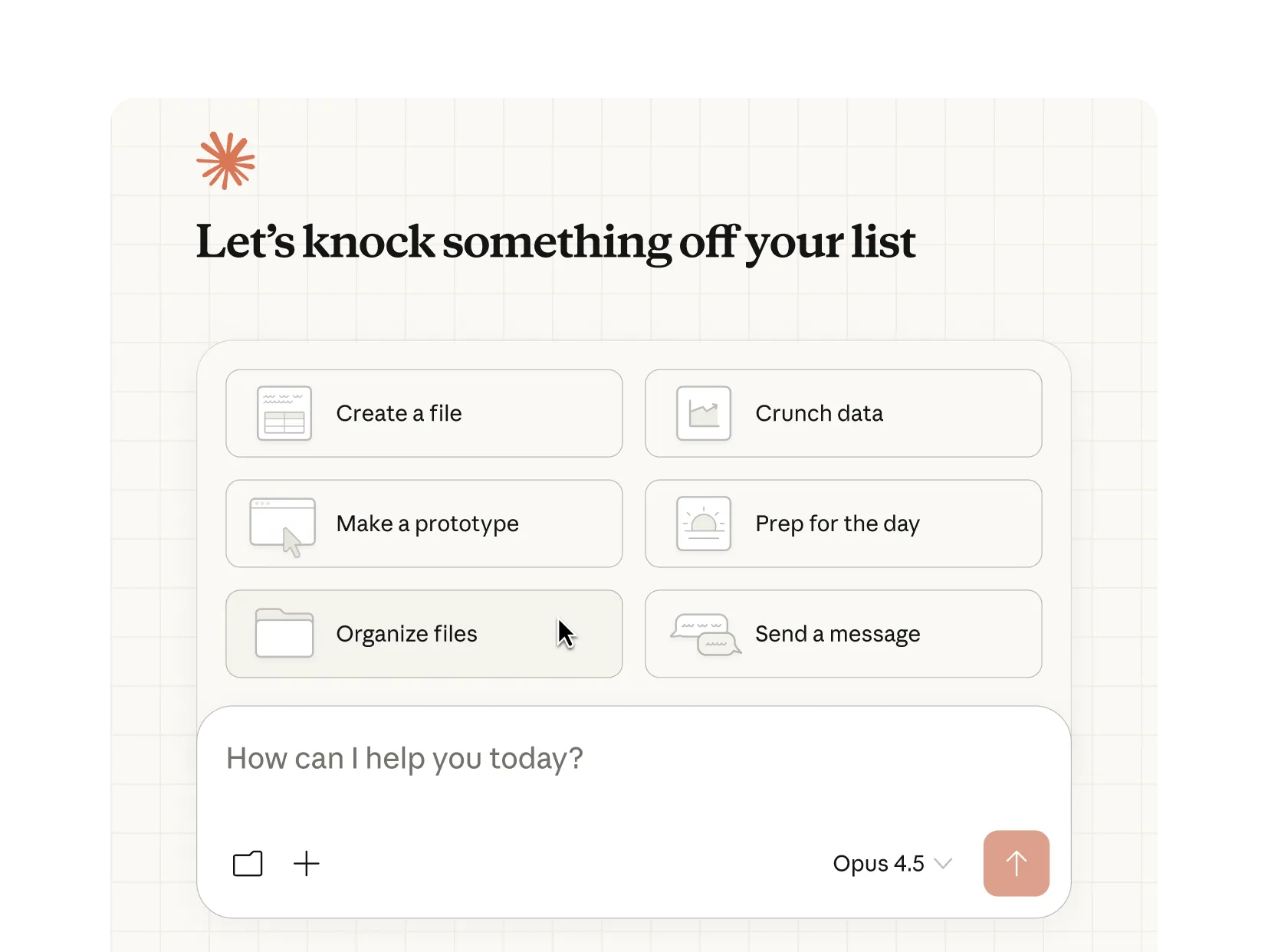
In the desktop app, switch the mode picker to Cowork. (If you don't see it, you may need the latest version — quit the app and re-open.)
Cowork mode gives Claude file tools and a small Linux sandbox. That's how it'll save the CSV and the dashboard to your computer.
Install the Chrome extension
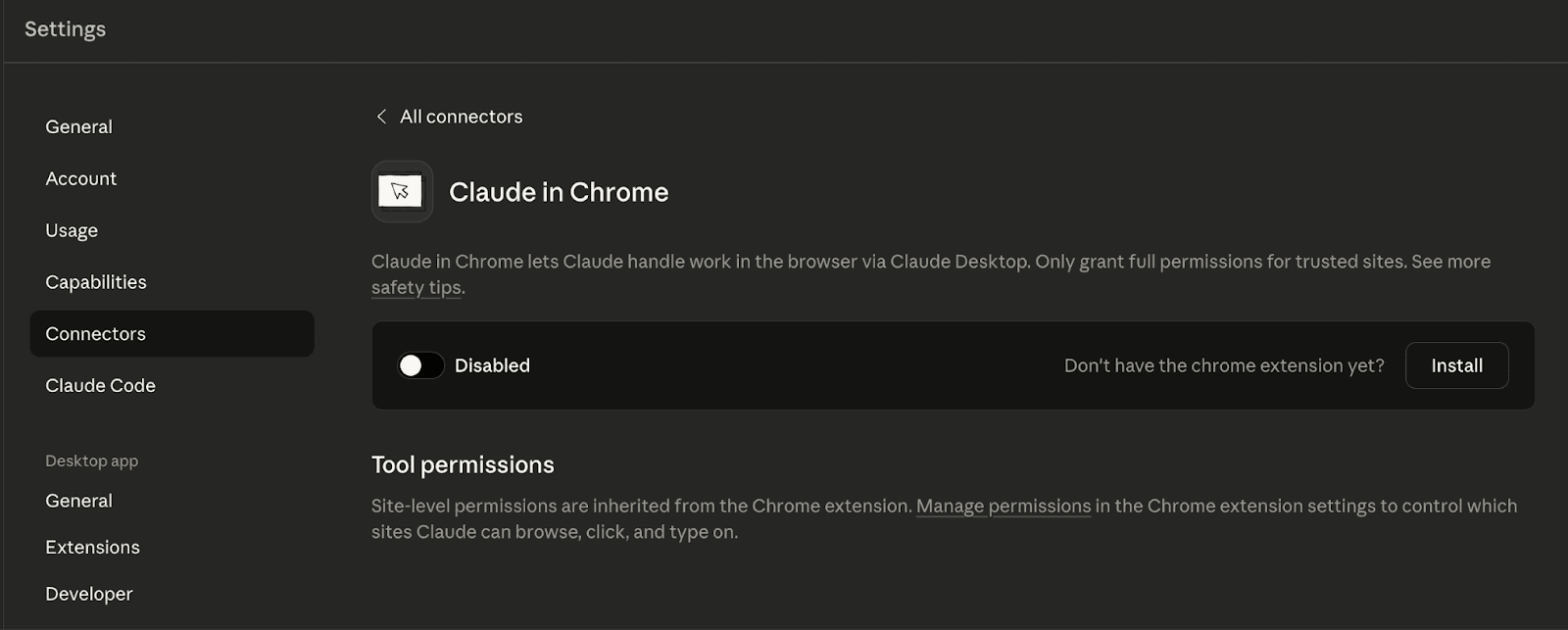
- Open Chrome and install Claude in Chrome from the Chrome Web Store.
- Click the extension icon → Pair with my account.
- You should now see “Personal Chrome” listed inside the Cowork app.
This is what lets Claude open tabs, navigate, and read pages on your behalf.
Set up your project folder
- Make a folder anywhere on your computer. Suggested: ~/Documents/Claude/Job Search.
- Drop your resume PDF inside. Rename it something clean like Resume-Firstname.pdf.
- In the Cowork app, click the folder icon and select that folder. Claude now has access to it.
Set up your LinkedIn search (do this once)
- Sign in to LinkedIn in the same Chrome.
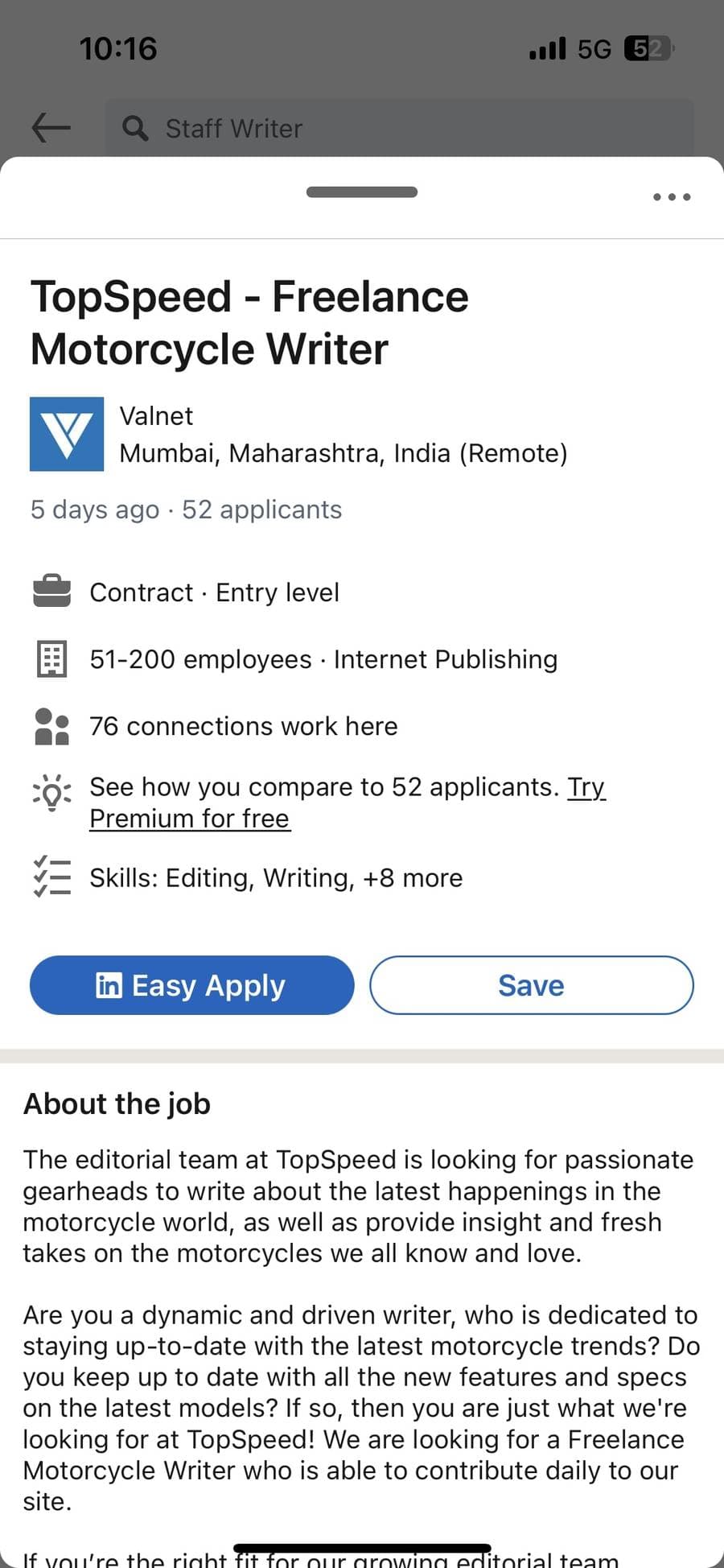
- Go to linkedin.com/jobs and run a real search — your title, the location/remote setting you actually want, the salary band that matches your level.
- Hit Save search. (Top right of the results.)
- Open the saved search at least once so Claude can navigate to it.
The whole point: by the time Claude opens LinkedIn, the filters are already the way you want them. Don't make Claude pick filters for you — it'll guess wrong.
Paste prompt #1 — scrape and score
Paste this into Cowork. The first time, Claude will ask for permission to use Chrome — say yes.
Prompt #1 — scrape and score
Open Chrome and go to my LinkedIn jobs feed — I'm signed in,
the saved searches and filters are set the way I want them.

Read my resume from the PDF in this folder. Use it as the
baseline for what I'm qualified for and what I actually want.

Then go through the job listings one at a time. For each role,
open the posting, extract the details, and back out. Aim for
the first 20 results unless I stop you.

Build a CSV with these columns:
- Company
- Role title
- Location / remote policy
- Employment type (FT, contract, fractional)
- Hourly rate or annual comp (extract if listed, mark "—" if not)
- Posted (e.g. "2 days ago")
- Tech stack / keywords
- Match score 1–10 vs. my resume
- Why it matches (one sentence)
- Why it might not (one sentence)
- Posting URL

Sort the CSV by match score, descending.

When you're done, give me a short summary at the top of the file:
- Top 5 strongest matches by name
- Comp range across the list
- Any patterns you noticed (e.g. "8 of these want Stripe specifically")

Save the CSV to this folder. Don't apply to anything, don't message
anyone, don't click any "Easy Apply" buttons. Just read and report.
While it runs (5–10 minutes for 20 jobs), don't touch the browser. Claude is clicking through every result.
Paste prompt #2 — build the dashboard
When the CSV is done, paste this:
Prompt #2 — build the dashboard
Take the CSV you just produced and build me an HTML dashboard
from it. Single self-contained file — inline CSS, inline JS,
no external dependencies except a CDN for icons. Save it next
to the CSV.

Layout:
- Header strip with three numbers: total jobs, jobs marked
  applied, jobs marked rejected. Update live as I click.
- Filter bar: search box (matches company or title), status
  filter (all / unreviewed / applied / rejected / saved),
  match-score slider (min score).
- Sort dropdown: match score, comp, recency.
- One card per job. Each shows: company, role, location/remote,
  comp, match score as a colored badge (green 8–10, yellow 5–7,
  gray below), the AI summary, expandable "why it matches /
  why not."
- Four buttons per card: Mark Applied, Mark Rejected, Save for
  Later, Open Posting (opens URL in a new tab).

State management:
- Use localStorage. Key each job by a hash of its posting URL
  so it survives CSV regenerations.
- Persist: status (unreviewed / applied / rejected / saved),
  notes (small textarea per card, optional).
- Status changes are instant — no save button.
- Visual treatment: applied = green left border, rejected = 50%
  opacity no border, saved = yellow accent.

Top-right: "Export my decisions" button — downloads a small JSON
of just the URLs and my statuses, so I can re-import later.

Style it dark mode, dense but breathable. Inter or system font.
No emoji.

Don't re-fetch from LinkedIn. Don't re-score. Just render the CSV.
Open the dashboard
Double-click dashboard.html to open it in Chrome. Bookmark it. That's the page you check every morning.
The weekly loop — schedule it once
Cowork can run this on a cadence so you don't have to remember. Open the same chat thread you used to build the dashboard, then:
- Type /schedule in the chat input. Cowork launches its scheduling skill.
- Paste the one-liner below as the task. Answer the multiple-choice prompts about cadence (weekly, Monday morning works well).
- Review the generated task name + schedule, then click Schedule.
- Find it later under the Scheduled sidebar section — you can pause it, edit cadence, or trigger a manual run.
Weekly re-run
Re-run the scrape and rebuild the dashboard. Same folder, same prompts.

The CSV regenerates with this week's listings. Open dashboard.html again — your applied/rejected/saved marks are still there because the dashboard keys them by posting URL, and most posting URLs are stable.
Things to tweak as you go
- Sample size. Change “20 results” to 30 or 50 if you want broader coverage. Costs more time, gives more signal.
- Score rubric. If Claude is scoring optimistically, add: “Be conservative. A 9 means it's almost a perfect match. A 5 means generic SWE role.” to prompt #1.
- Specialty bias. If you want it to over-weight a niche (payments, ML infra, mobile), say so explicitly: “Score with a strong bias toward [niche] — penalize roles that don't mention it.”
- Notes column. If you want a “Notes” column in the CSV that Claude leaves blank for you to fill in later, add that to the column list.
What you've built
You have a personal job-hunt pipeline that:
- Reads LinkedIn for you.
- Scores every posting against your real resume, not your hopes.
- Persists your decisions across re-runs.
- Takes 30 seconds of your attention per day instead of 90 minutes.
The whole thing is yours. The CSV, the dashboard, the localStorage — all on your machine. Nothing on a SaaS dashboard you'll forget to cancel.
Was this useful?
I publish new guides and what I learn running this stack in production. Get them by email — no spam, unsubscribe anytime.
While the pipeline runs, build something of your own.
The Builder’s Roadmap is the free 7-stage guide from idea to income — the same system, pointed at your own product instead of a job board. Read the Roadmap →